QuickBooks is a popular tool for small business accounting. This guide will help you set it up easily. Follow these steps to get started.
Why Use QuickBooks?
QuickBooks helps manage your business money. It keeps track of sales, expenses, and profits. It is easy to use and saves time.
Step 1: Choose Your QuickBooks Version
QuickBooks has different versions. Choose one that fits your business needs.
- QuickBooks Online: Works on the internet. Good for small businesses.
- QuickBooks Desktop: Installed on your computer. Good for larger businesses.
Step 2: Sign Up and Create an Account
First, go to the QuickBooks website. Sign up for an account. Fill in your business details. You will need your business name, address, and contact information.
Step 3: Set Up Your Company Profile
Once signed in, you need to set up your company profile. Enter your business name, address, and phone number. Also, add your business type. This helps QuickBooks tailor its features for you.
Step 4: Connect Your Bank Accounts
Connecting your bank accounts is important. It lets QuickBooks automatically track your transactions. To do this:
- Go to the banking section.
- Select “Add Account.”
- Enter your bank details and sign in.
Step 5: Set Up Your Chart of Accounts
The chart of accounts is a list of your business’s financial accounts. It includes assets, liabilities, income, and expenses. QuickBooks has a default list, but you can add or edit accounts as needed.
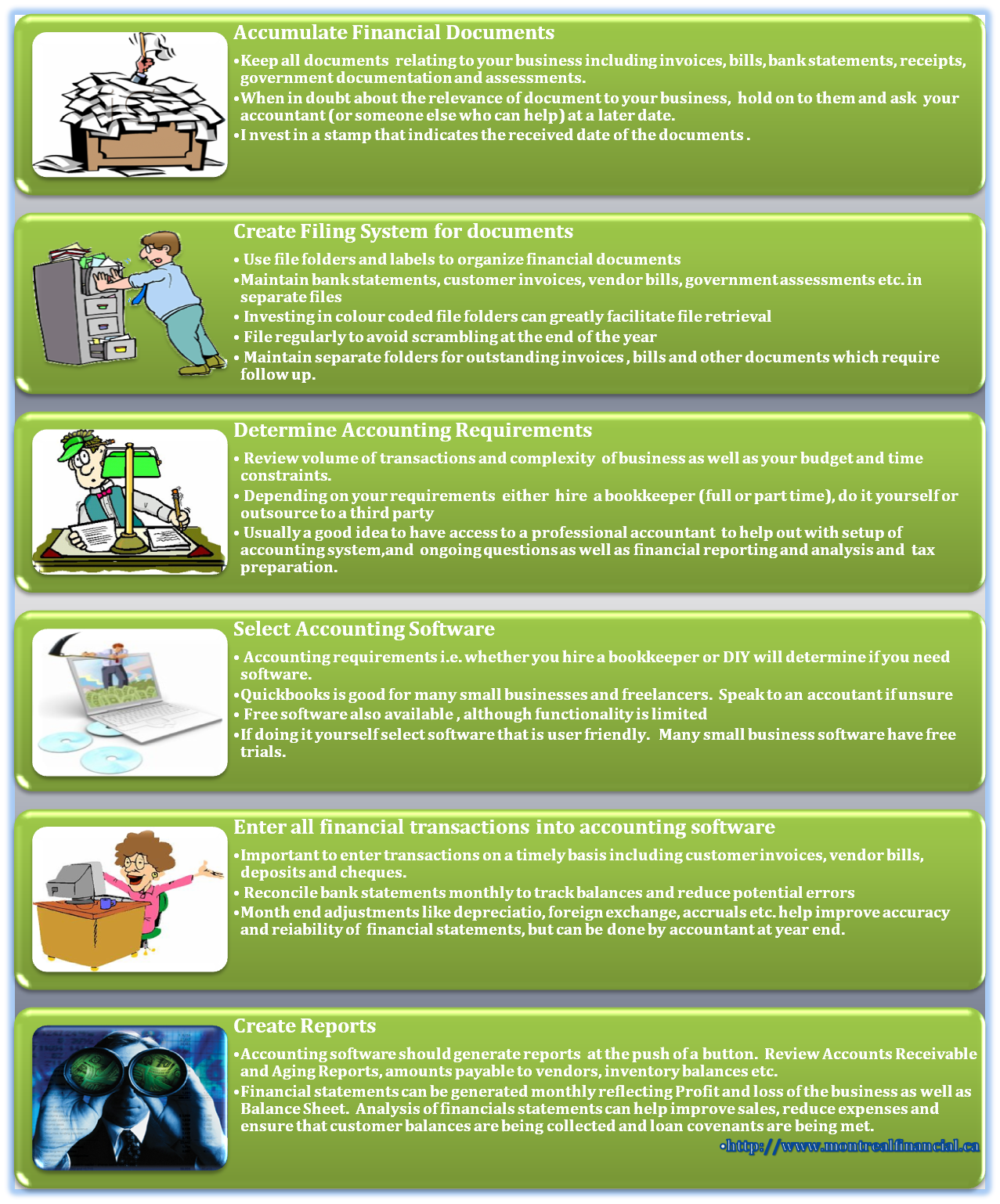
Credit: www.montrealfinancial.ca
Step 6: Set Up Products and Services
Next, add the products or services you sell. Go to the sales section and select “Products and Services.” Click “New” and enter the details of each product or service.
Step 7: Set Up Customers and Vendors
Adding your customers and vendors helps keep track of sales and purchases. Go to the sales section for customers. Select “New Customer” and enter their details. For vendors, go to the expenses section and do the same.
Step 8: Enter Your Transactions
Now, enter your existing transactions into QuickBooks. This includes sales, expenses, and any other financial activities. You can import them from your bank account or enter them manually.
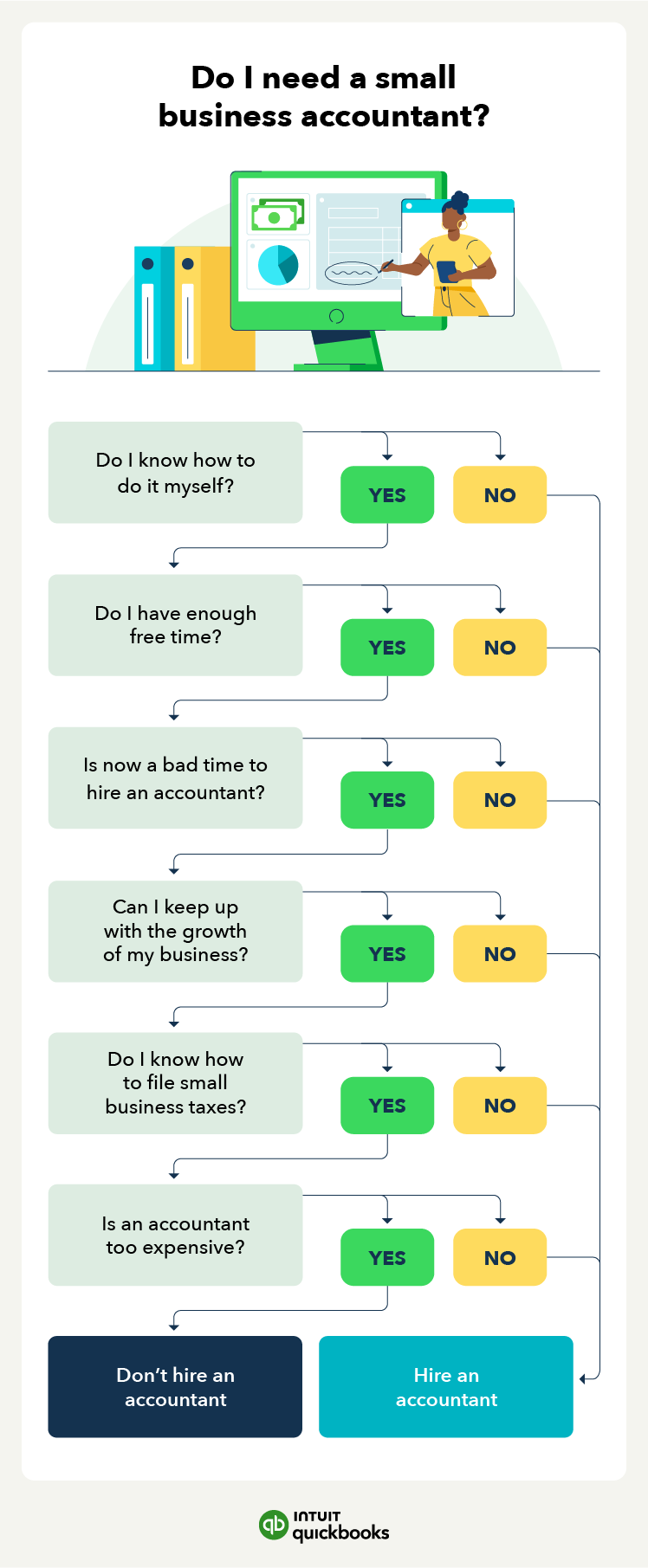
Credit: quickbooks.intuit.com
Step 9: Reconcile Your Accounts
Reconciling your accounts ensures that your QuickBooks records match your bank statements. Do this monthly to keep your records accurate. Go to the banking section and select “Reconcile.”
Step 10: Generate Reports
QuickBooks can generate various financial reports. These reports help you understand your business’s financial health. Go to the reports section and choose the report you need. Common reports include profit and loss, balance sheet, and cash flow.
Step 11: Backup Your Data
Backing up your data is crucial. It protects your information from loss or damage. QuickBooks Online automatically backs up your data. For QuickBooks Desktop, go to the file menu and select “Backup Company.”
Tips for Using QuickBooks
Here are some tips to help you use QuickBooks effectively:
- Keep your records updated. Enter transactions regularly.
- Use QuickBooks tutorials. They offer helpful guidance.
- Consult with an accountant. They can provide expert advice.
Frequently Asked Questions
What Is Quickbooks?
QuickBooks is an accounting software for small businesses. It helps manage income, expenses, payroll, and taxes.
How To Install Quickbooks?
Download QuickBooks from the official website. Follow the installation wizard. Enter your license key to complete.
How To Create A Company File In Quickbooks?
Open QuickBooks. Click on “Create a new company file. ” Enter your business details and save.
How To Set Up Bank Accounts In Quickbooks?
Go to the “Banking” menu. Select “Add new account. ” Enter your bank details and save.
How To Generate Financial Reports In Quickbooks?
Navigate to the “Reports” menu. Select the report type you need. Customize filters and generate the report.
Conclusion
Setting up QuickBooks for your small business accounting is simple. Follow these steps to get started. QuickBooks will help you manage your finances and grow your business.
Thank you for reading this guide. We hope it helps you set up QuickBooks easily. Good luck with your small business accounting!