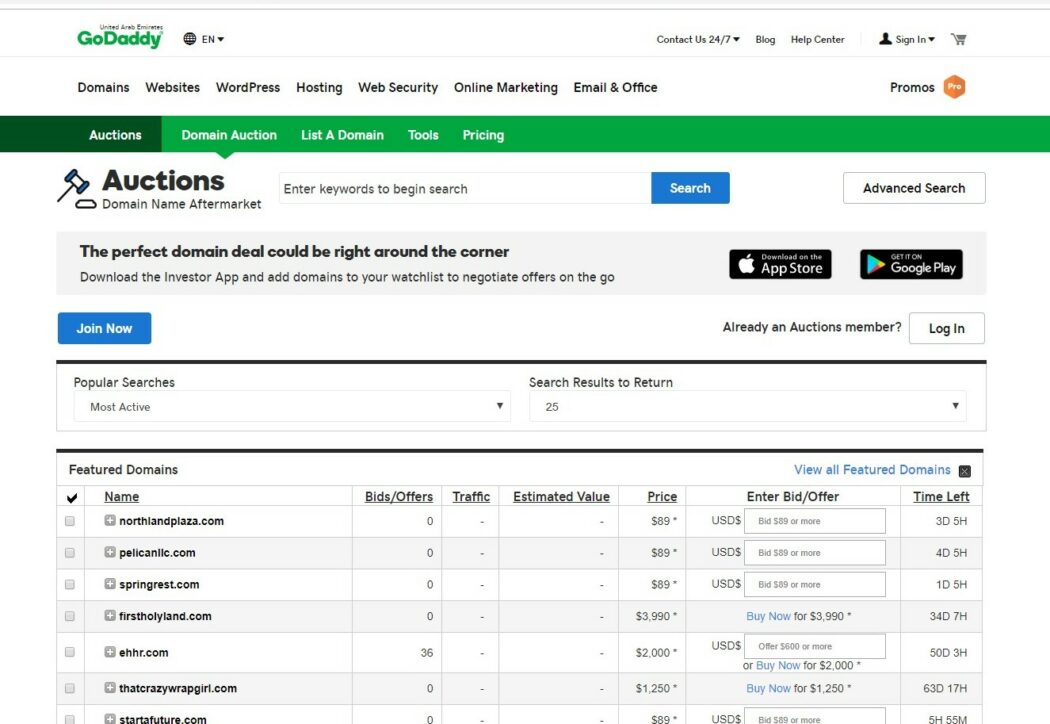
Buying a domain is the first step to starting a website. GoDaddy is a popular choice for this. This guide will help you buy a domain from GoDaddy easily.
Step 1: Visit GoDaddy
First, go to the GoDaddy website. You can do this by typing www.godaddy.com in your browser. The website will open. You will see a search bar in the middle of the page.

Credit: www.youtube.com
Step 2: Search for Your Domain Name
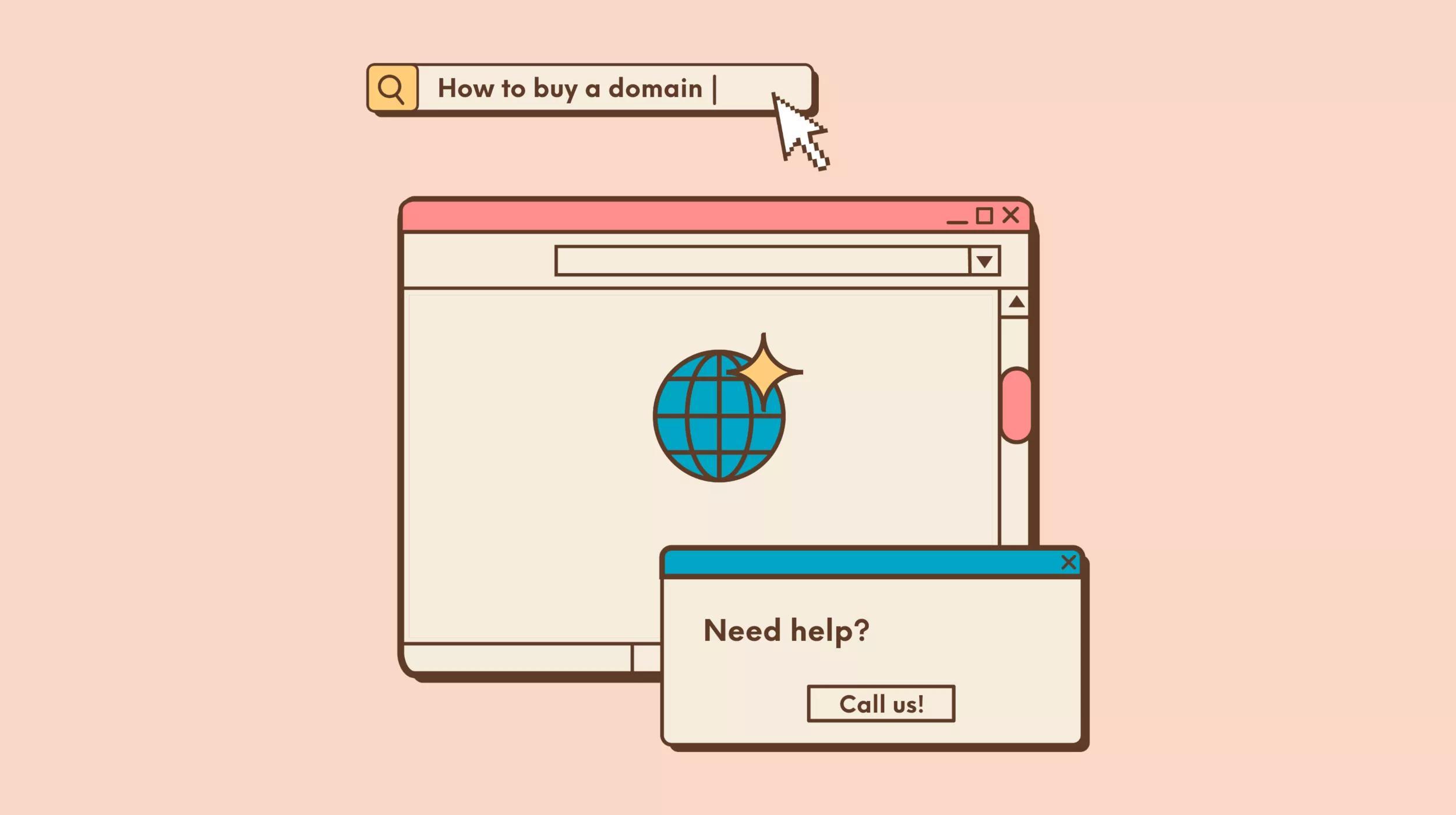
Next, you need to search for your domain name. Type the name you want in the search bar. Click the “Search” button. GoDaddy will show you if the name is available. If it is not, you can try a different name.
Credit: www.godaddy.com
Step 3: Choose Your Domain
If your domain name is available, you will see a list of options. You can choose the one you like. GoDaddy will show you the price for each option. Pick the one that fits your needs and budget.
Step 4: Add to Cart
Once you have chosen your domain, click the “Add to Cart” button. This will add the domain to your shopping cart. You will see a summary of your order.
Step 5: Review Your Cart
Now, review your cart. Make sure everything is correct. GoDaddy may offer extra services like website building or email. You can add these if you want. If not, you can skip them.
Step 6: Proceed to Checkout
When you are ready, click the “Proceed to Checkout” button. You will be taken to the checkout page. Here, you will need to create a GoDaddy account or log in if you already have one.
Step 7: Create or Log In to Your Account
If you are a new user, click on “Create Account”. Fill in your email, username, and password. If you already have an account, just log in with your details.
Step 8: Enter Your Billing Information
Next, you need to enter your billing information. This includes your name, address, and payment details. Make sure all the information is correct.
Step 9: Complete Your Purchase
Finally, review your order one last time. If everything looks good, click the “Complete Purchase” button. GoDaddy will process your order. You will receive a confirmation email.
Step 10: Manage Your Domain
After your purchase, you can manage your domain. Log in to your GoDaddy account. Click on “My Products”. Here, you will see your new domain. You can set it up for your website.
Frequently Asked Questions
What Is A Domain Name?
A domain name is a website’s address on the internet.
How Do I Search For A Domain On Godaddy?
Use GoDaddy’s search bar to find available domains.
Can I Buy A Domain Without An Account?
No, you must create a GoDaddy account first.
How Much Does A Godaddy Domain Cost?
Prices vary. Typically, domains start around $10 per year.
Conclusion
Buying a domain from GoDaddy is simple. Follow these steps, and you will have your domain in no time. Good luck with your new website!